The hard part of managing employee time off isn’t writing the policy. It’s the checking every request needs before anyone can say yes: who else is off that week, and how many days the person has left.
In a team of 20 or 30, that checking never stops. Staff email the office manager to ask how many days they have left, so she opens the spreadsheet, finds their row and emails back. A part-timer who works three days a week books a week off, and someone has to remember to take three days from her allowance, not five. And when a line manager approves a request straight from their inbox, two people from the same team can end up off in the same week with nobody covering their work.
Plenty of small teams still run leave in a spreadsheet, on paper or in a shared Google Calendar. So I wanted to see what actually changes when you move it into a dedicated leave tool. I set up a free trial of Timetastic, a UK leave planner built for small businesses, and ran it through the four moments where a spreadsheet hurts most:
- A holiday request comes in
- Two people want the same week
- Someone asks how many days they have left
- Someone phones in sick
Each section starts with the rule your policy needs to set. Then I show where a spreadsheet lets you down and what happened when I tried the same thing in Timetastic. The last section covers when a spreadsheet is still enough, and when a team is better off with a full HR system.
How I tested
I created a made-up company with a four-person Accounts team. Priya, Tom and Linda work full time, and Megan works Mondays, Tuesdays and Thursdays. Then I booked overlapping holidays, logged a sick day, capped the team at one person off and locked month end. Every screenshot below comes from that trial account.
I’m not affiliated with Timetastic. I used the standard 30-day free trial, which doesn’t ask for a card.
Before you start: the rules your policy should settle
If you already have a leave policy, skip ahead. If not, these are the decisions to write down first, because every situation below depends on one of them:
- Entitlement: how much leave people get, in days or hours, and when the leave year starts. The UK legal minimum is 5.6 weeks, and bank holidays can count towards it.
- Notice: how far ahead people need to ask.
- Approval: who approves for each team, and who steps in when they’re away.
- Clashes: who gets the week when two people want it. First come, first served, or taking turns over school holidays.
- Cover: how many people per team can be off at once, and which dates are off limits.
- Sickness: how people report it, and when company sick pay ends.
- Carry-over: how many unused days roll into next year, and by when they must be used.
A policy says what should happen. The rest of this guide is about making it happen without checking every request by hand.
1. When a holiday request comes in: one way to ask, one person to approve
In most small offices, leave requests arrive from everywhere. An email, a Teams message, a sticky note on the monitor, a “would next Friday be OK?” by the kettle. The office manager types each one into the spreadsheet, if she hears about it at all.
The rule to set: one way to ask, one approver per team, and a named backup for when that approver is away.
Where a spreadsheet lets you down
- Requests come in through four channels, and only one of them is the sheet.
- Nobody’s sure whether “sounds fine” in the corridor counts as a yes.
- When the approver is on holiday themselves, requests wait until they’re back.
What I found in Timetastic
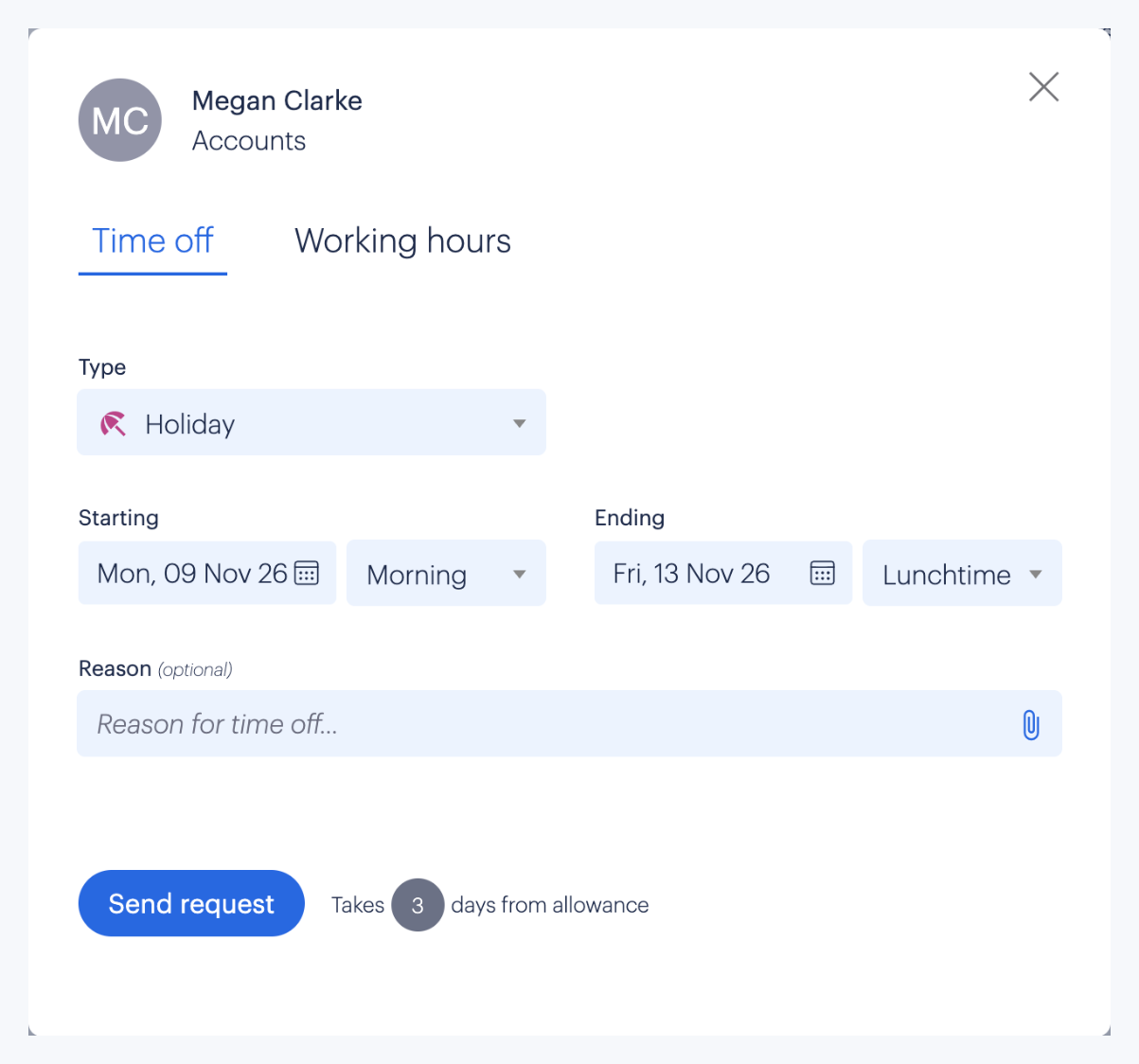
- You see the cost before you send. I dragged across Monday to Friday on Megan’s row, and the booking form showed it would take 3 days from her allowance, not 5. That’s exactly the sum someone usually does by hand.
- Every team has one approver. Each department gets a manager who approves its leave, and requests go to them to approve or decline.
- Admins can step in. If a manager is away, an admin can see the open requests and approve them instead.
- Approved leave shows up where people already look. Timetastic syncs with Google Calendar and Outlook, so nobody has to log in just to check who’s off.
2. When two people want the same week: see the clash before you approve it
Most leave clashes happen because the person approving can’t see the whole team. A line manager gets a request for the second week of August, checks their own diary and says yes. What they don’t know is that a colleague booked the same week through the office manager a month ago, in a spreadsheet the manager never opens. By the time anyone notices, both holidays are paid for and nobody’s left to cover the work.
The rule to set: how many people per team can be off at once, and who wins when two requests collide.
A rule like “one person off per team” only works if the person approving can see who’s already off. This is where Timetastic made the biggest difference in my test.
See everyone’s leave on one screen
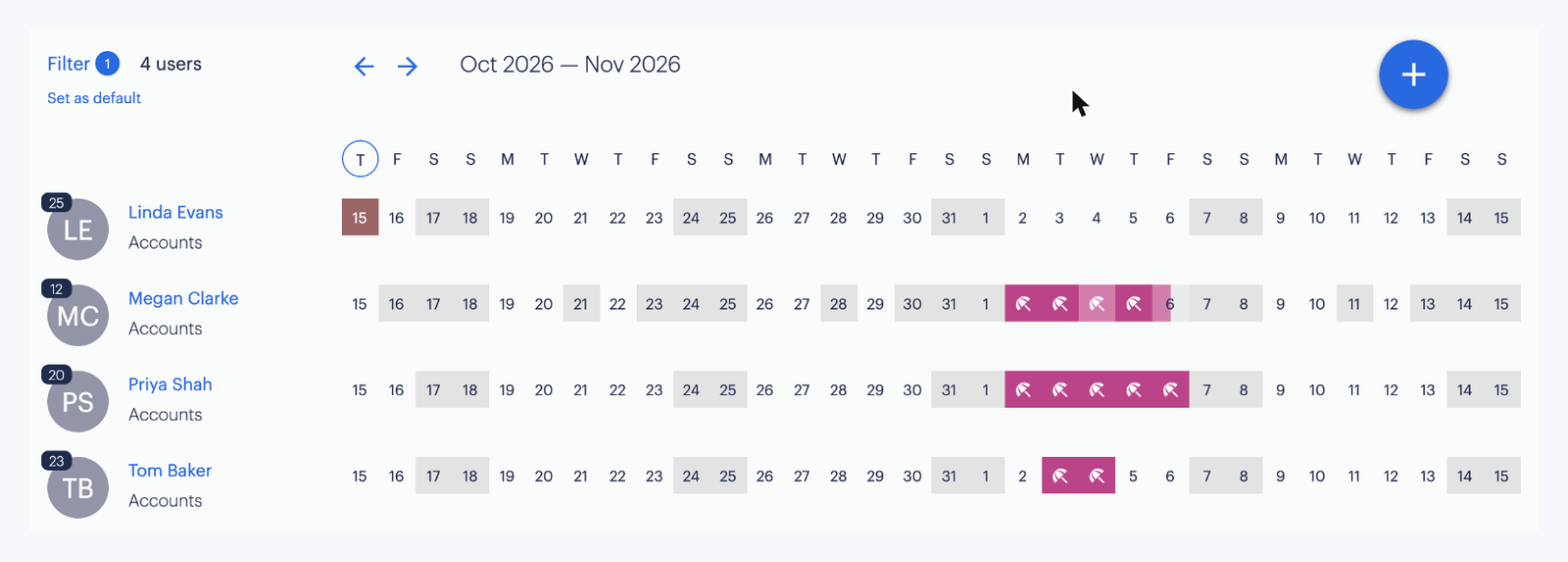
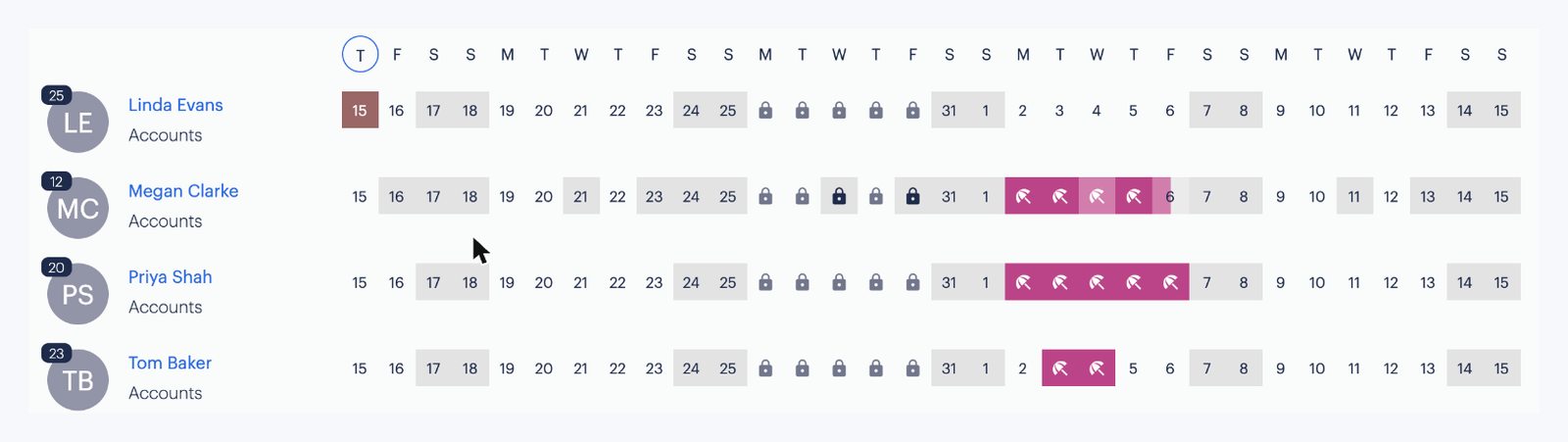
The wall chart is Timetastic’s main screen: your team down the left, the month across the top, everyone’s leave on one grid. I filtered mine to the Accounts team, and you can save that as your default view.
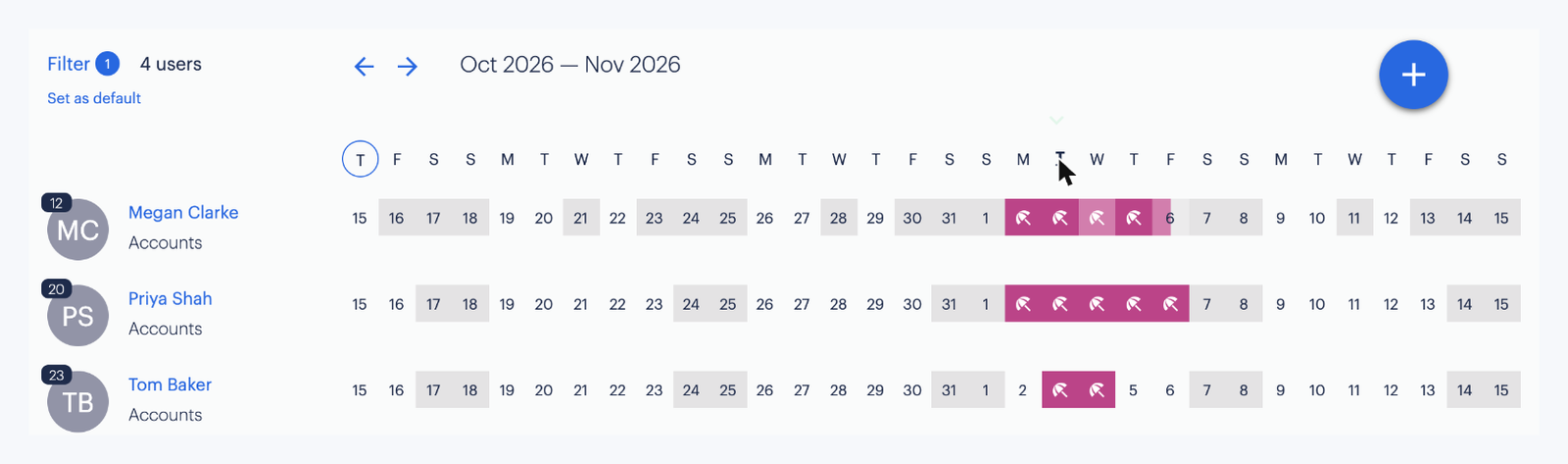
Click any day and the chart folds down to just the people who are off. That’s the question a manager is really asking when a request comes in.
Get a warning when requests overlap
Timetastic says it flags overlapping requests in the manager’s list and shows who asked first, which makes first come, first served easy to apply and easy to explain. I couldn’t test this part myself. Bookings I made as the admin were approved straight away, so nothing landed in a pending list. You’d need staff requesting leave from their own logins to see it.
Set a limit on how many people can be off
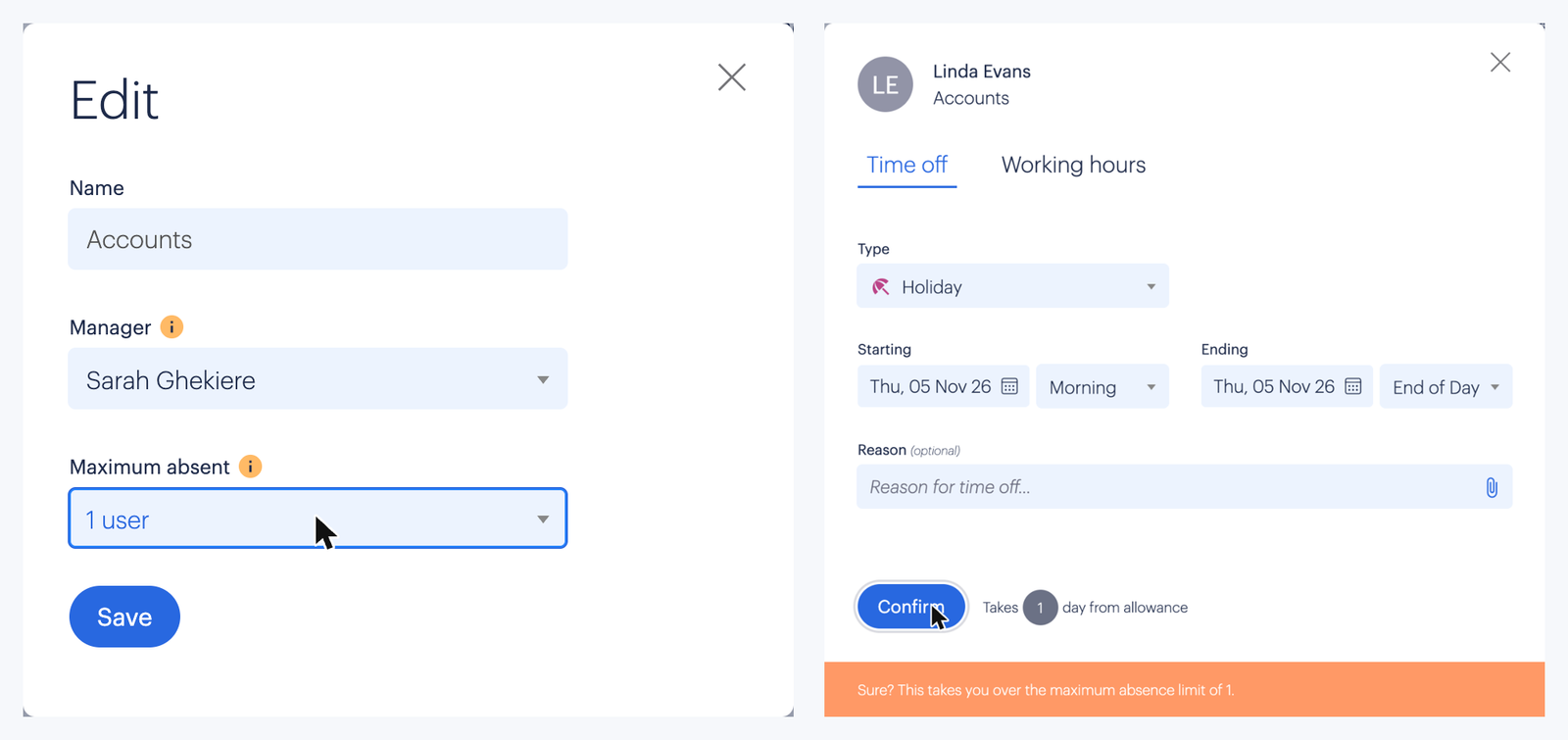
This is the setting I’d turn on first. Maximum absence lets you choose how many people per department can be off on the same day. I set Accounts to one. When I then tried to book Linda on a day Priya was already off, Timetastic stopped me with a warning that this would take the team over its limit.
As an admin I could still confirm it. That’s what you want for a family emergency or a wedding booked a year ago, while everyone else simply can’t break the rule by accident.
Lock the dates when you need everyone in
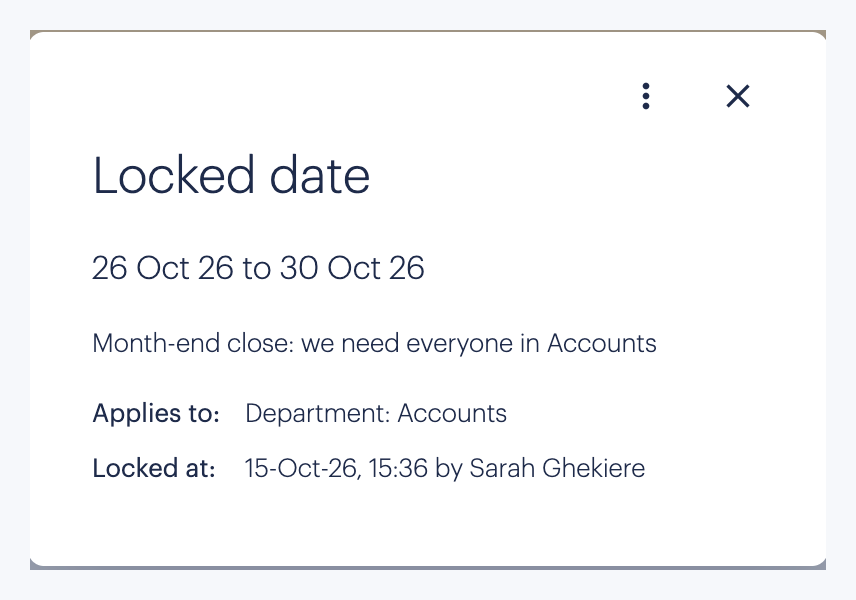
Some weeks nobody should be off: month end in finance, the run-up to Christmas in retail, the week before a big deadline. For my Accounts team, I locked 26 to 30 October and added a reason. Staff can’t book those days, and anything booked before the lock still stands. The days show as padlocks on the wall chart, and clicking one shows the dates, the reason and who locked them.
Both maximum absence and locked dates worked on the trial’s standard plan. Only a few extras, like limits per leave type, are marked as Pro features.
Why a shared calendar isn’t enough
A shared Google or Outlook calendar shows who’s off, but that’s all it does. It can’t stop a booking that breaks your team limit, it doesn’t know who asked first, and it doesn’t touch anyone’s allowance. Timetastic handles those parts and then sends approved leave back to Google or Outlook, so people still see it where they already look.
3. When someone asks how many days they have left: let them check for themselves
Every “how many days do I have left?” email means the same routine for the office manager: open the file, find the row, check the formula still works, reply. Before the summer holidays, those emails can arrive several times a day, and each answer is only as accurate as the last update to the sheet.
The rule to set: whether allowance is counted in days or hours, how part-timers and mid-year starters are pro-rated, and how time off in lieu works.
Where a spreadsheet lets you down
- The balance only lives in the spreadsheet, so every question goes to one person.
- Part-time maths is easy to get wrong. A week off for someone who works three days should use three days, not five.
- Year end means a morning of carrying unused days across by hand.
What I found in Timetastic
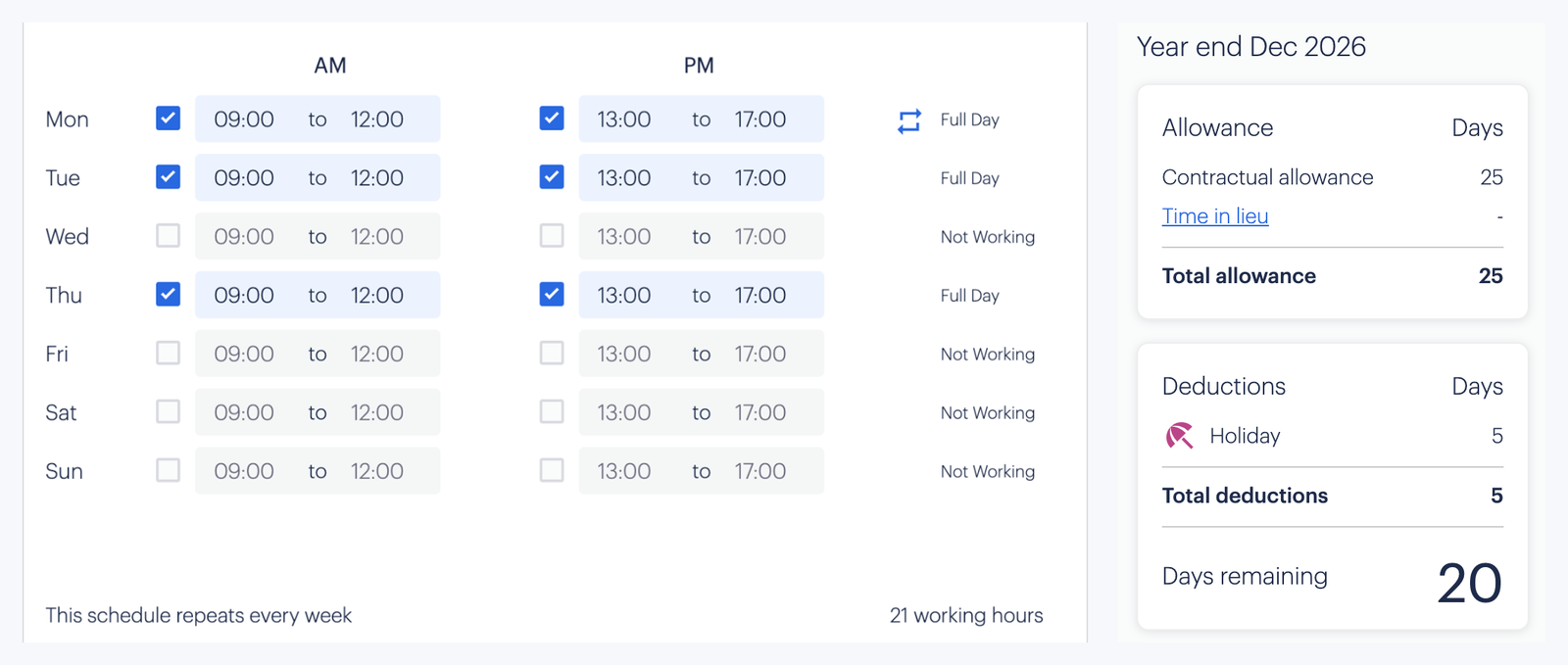
- Every balance is live. Each name on the wall chart has a small number with the days left. After I booked Priya’s week off, hers dropped from 25 to 20 straight away.
- Staff can check their own. Everyone has a calendar with their allowance, what they’ve used and what’s left, on desktop or in the mobile app.
- Part-timers lose the right number of days. I set Megan’s working days once. After that, every booking only counted the days she actually works.
- Year end runs itself. Unused days can carry over automatically, up to a limit you set.
4. When someone phones in sick: record it the same day
Linda rings her line manager at 8am with flu. The manager tells the team, and that’s where it ends. Nobody updates the spreadsheet, so when she’s off again in March, no one can say how many sick days she’s already had. Payroll keeps paying company sick pay past the point your policy says it should stop.
The rule to set: who people report sickness to, who records it, and when company sick pay ends.
Where a spreadsheet lets you down
- The call goes to the line manager and never reaches the sheet.
- Without a record, nobody knows when sick pay should stop, and payroll finds out late.
- A note in a shared calendar tells the whole office why someone is off.
What I found in Timetastic
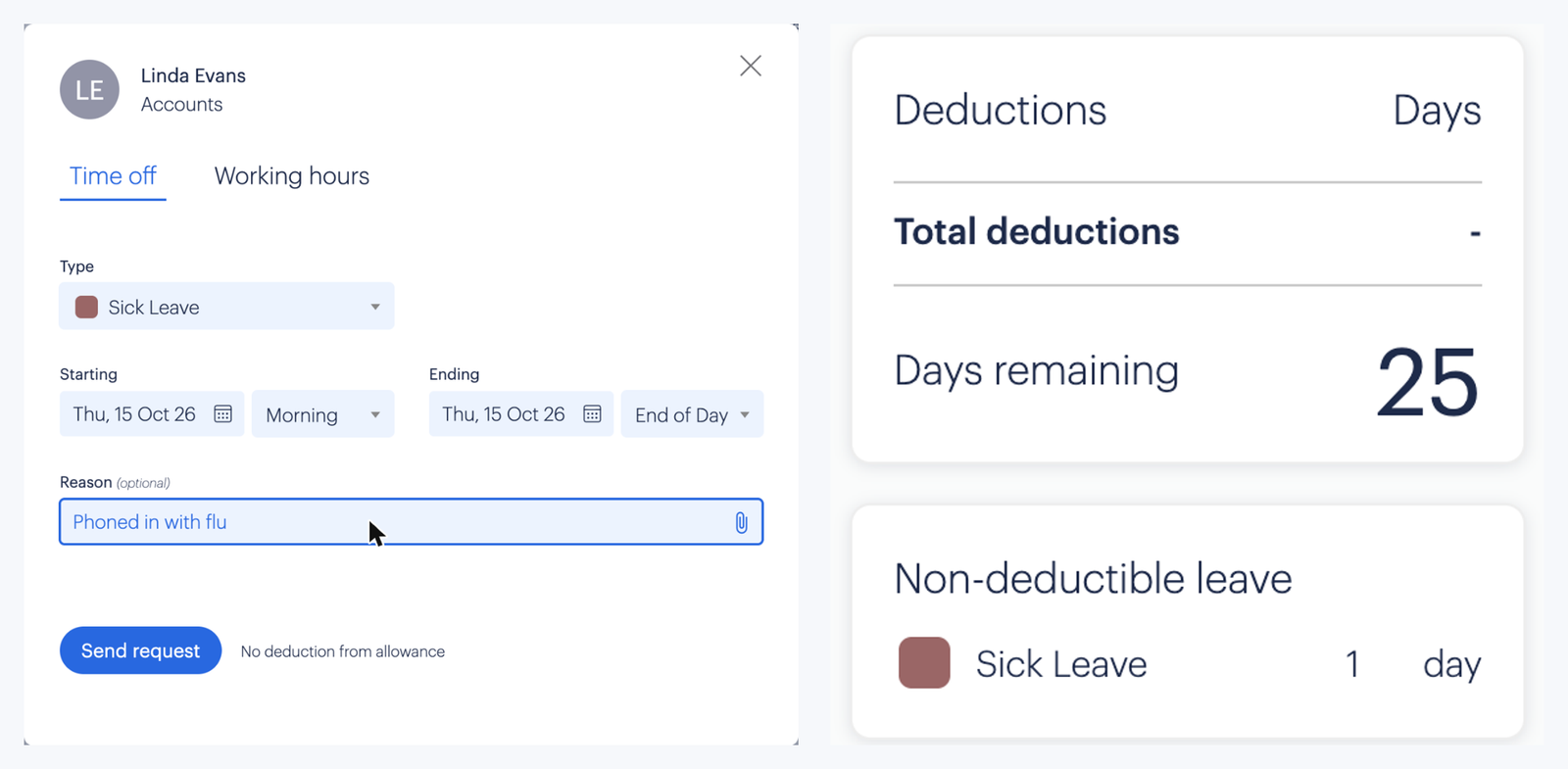
- A manager or admin can log it for them. I logged Linda’s sick day from the wall chart in a few seconds, with “Phoned in with flu” as the reason. She didn’t need to log in.
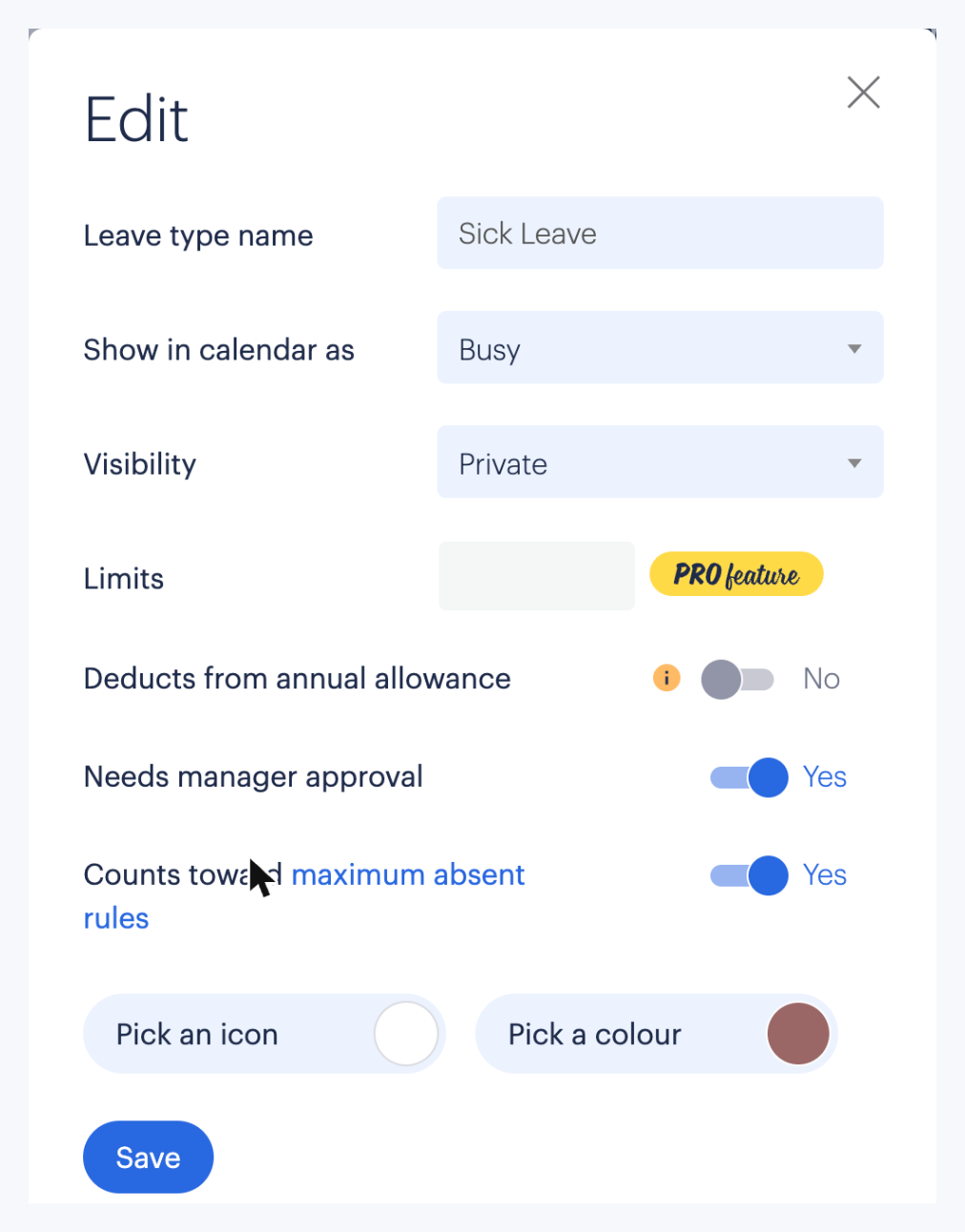
- Sickness doesn’t eat into holiday. Sick leave is its own leave type. The booking form said “No deduction from allowance”, and Linda still had all 25 days. You can add your own types too, like appointments or training.
- The history is one click away. As an admin I could open anyone’s calendar and see their sick days listed separately from holiday.
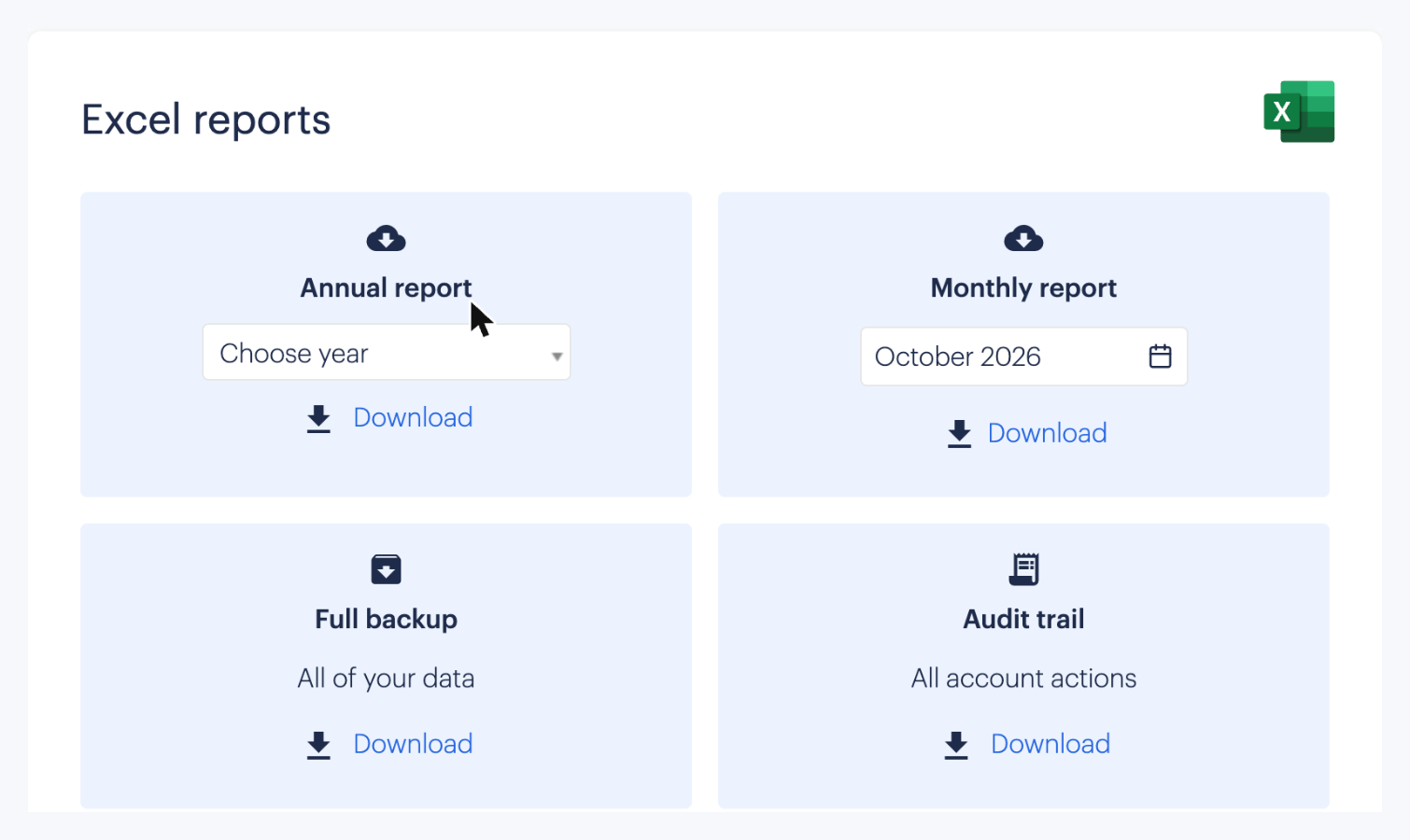
- Payroll gets a file. Annual and monthly reports and a full backup download as Excel files.
- The reason stays private. Sick leave is set to private by default, so colleagues don’t see why someone is off.
Keep in mind that Timetastic records absence. It doesn’t run payroll, so your payroll provider still makes the payments.
Spreadsheet, leave tool or HR system: which one fits your team?
A spreadsheet isn’t wrong for every team, and Timetastic isn’t right for every team either. Here’s how I’d decide:
| Your team | What usually works | Why |
|---|---|---|
| Under 10 people on regular hours | A shared spreadsheet or calendar | Few enough requests to check by hand |
| Around 10 to 100 office staff | A leave tool like Timetastic | Every new hire adds more requests to check by hand |
| 100+ staff, or you want payroll and HR in one place | An HR platform with an absence module | Absence is usually included, so you’d pay for it twice |
| Shift teams on rotating patterns | A rota tool, such as Timetastic’s Rota & Time Clock app | Leave depends on the rota, so they belong in one place |
If your team sits in the middle of that table, a dedicated leave tool covers all four situations above for a fraction of what an HR platform costs.
Should you try it?
The quickest way to know is to put your next busy month into it.
- 30-day free trial, no card needed. If you need longer, Timetastic’s support team can extend it.
- From £1.20 per user per month on the Business plan, or £2.00 on Pro. A 25-person team on Business pays £30 a month.
- Monthly billing, no contract. You can switch plans or cancel, and export your data to Excel if you leave.
- 50% off for charities and NHS Trusts.
If I were setting it up for a real team, I’d start small: add one department, set maximum absence to one, and see whether the next clash gets caught before anyone books flights.